Allows screenshots, area and window snips, scrolling captures, and screen recordings. Despite the macOS name, SnipIt captures only after you start an action.
Privacy & Security → Screen & System Audio Recording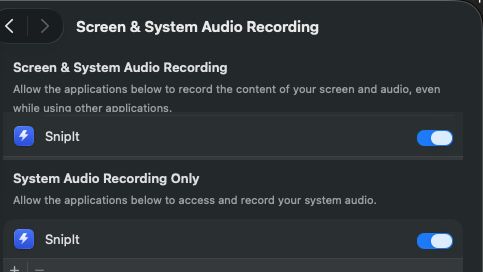
SnipIt asks only when a feature needs access. Here is what each macOS permission enables, why it is safe, and how to repair it without reinstalling the app.
macOS keeps these controls in one place. The wording can vary slightly between macOS releases.
Screen, camera, and microphone data are processed on your Mac. SnipIt uploads a capture only when you choose an upload or sharing action.
Optional permissions are requested only when you use the related feature.
Allows screenshots, area and window snips, scrolling captures, and screen recordings. Despite the macOS name, SnipIt captures only after you start an action.
Privacy & Security → Screen & System Audio RecordingLets Scroll Snip send controlled scroll events to the page you selected. SnipIt does not read passwords, keystrokes, or the contents of unrelated apps.
Privacy & Security → Accessibility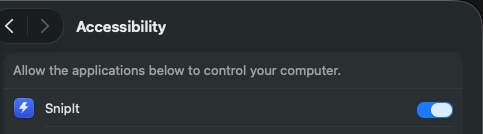
Allows SnipIt’s signed updater to replace the installed SnipIt app after you approve an update. It does not give SnipIt control over your other applications.
Privacy & Security → App Management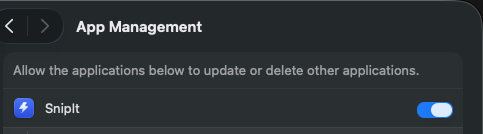
Records your voice only when you select a microphone for a screen recording. Recordings without microphone audio do not need this permission.
Privacy & Security → Microphone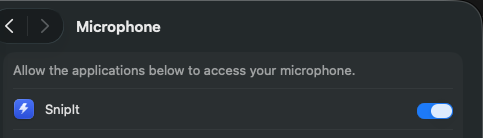
Enables the webcam bubble during a recording. The camera remains off unless you explicitly turn the webcam option on.
Privacy & Security → Camera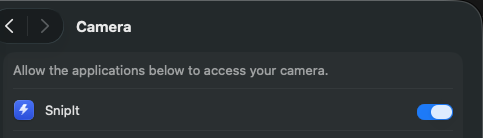
Shows useful status such as completed uploads, failed uploads, or recording results. Blocking notifications does not prevent capturing.
Notifications → SnipIt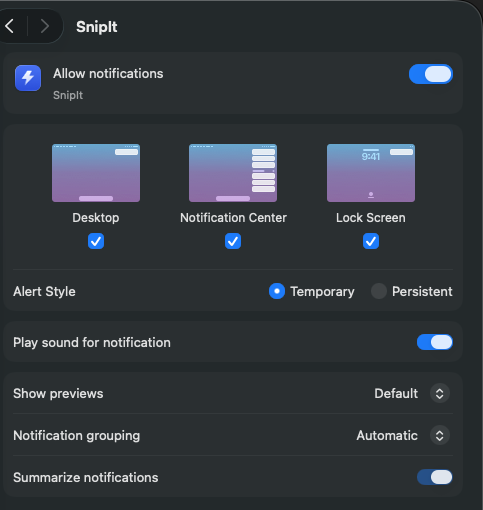
Normal SnipIt updates replace the app without resetting your settings, Capture Vault, or approved permissions. If macOS asks again after a future signing or security change, approve the new SnipIt entry once and continue normally.
First try turning the affected SnipIt switch off and on, then quit and reopen SnipIt.
Open SnipIt and start the feature once—for example, take a screenshot or start Scroll Snip. macOS adds SnipIt to the relevant list when access is first requested.
Turn the switch off, turn it back on, then quit SnipIt from its menu-bar menu and reopen it. Also confirm you enabled the current SnipIt entry rather than an older copy in Downloads.
Screen Recording is working, but Accessibility is missing. Enable SnipIt under Privacy & Security → Accessibility and relaunch the app.
Enable SnipIt under Privacy & Security → App Management, then use Check for Updates again. Keep SnipIt in the Applications folder while updating.
Apple uses the same privacy category for apps that read pixels from the screen, including still screenshots. SnipIt does not record continuously; capture begins only after your action.
Tell us which permission or feature is failing and include your macOS version.